


If you want to get some information about any topic using search engine, the search engine will search the given information and will provide a list of links of websites along brief description about each website. You should use the right search terms for relevant results.
The following points must be noted to search the information on the internet.
· You can type all word in lowercase and also in uppercase, search engine will return the same result. But the best practice is type search keywords always in lowercase.
*
Use + sign between words if you want to search the all words. For example, to search history of Football in Europe, type as:
history+Football+Europe
*
To search the exact match, write the words in double quotation marks. For example to search the map of Europe, then type as:
"Map of Europe"
*
Always avoid to use "and", "or" with search keywords, because these words will affect the search result.

Custom Search
Showing posts with label Internet tips. Show all posts
Showing posts with label Internet tips. Show all posts
Thursday, March 25, 2010
Saturday, December 12, 2009
how to test ISP speed (Internet Connection)
go to address www.speedtest.net

if you want to test your isp speed you can go to www.speedtest.net
and just to click on button "begin Test" so that you can see your real speed.


if you want to test your isp speed you can go to www.speedtest.net
and just to click on button "begin Test" so that you can see your real speed.


Thursday, December 10, 2009
Netscape Navigator Keyboard Shortcuts

The following is a table of Netscape Navigator functions (or potential functions) and their keyboard shortcuts in Macintosh, Unix, and Windows versions. If a function exists in the browser but does not have a shortcut, its corresponding cell is marked with an asterisk(*). If the function does not exist, it is left blank.
Some entries contain links to special notes. The number in parentheses following the link is the number of the relevant note.
| Function | Macintosh (v 4.61) | Unix (v 4.51) | Windows (v 4.7) |
|---|---|---|---|
| Move within a document | |||
| Scroll to next page | Page Down | Page Down | Page Down |
| Scroll to previous page | Page Up | Page Up | Page Up |
| Scroll to top | * | * | * |
| Scroll to bottom | * | * | * |
| Move between documents | |||
| Open a new document | Command+L | Alt+O | Ctrl+O |
| Stop loading a document | Command+. | Esc | Esc |
| Refresh a document | Command+R | Alt+R | Ctrl+R |
| Load previous document | Command+[ or Command+Left Arrow | Alt+Left Arrow | Alt+Left Arrow |
| Load next document | Command+] or Command+Right Arrow | Alt+Right Arrow | Alt+Right Arrow |
| Navigate elements within a document | |||
| Move focus to next frame | * | * | * |
| Move focus to previous frame | * | * | * |
| Move focus to next active element (1) | Tab | Tab | Tab |
| Move focus to previous active element (1) | Shift+Tab | Shift+Tab | Shift+Tab |
| Find word in page | Command+F | Alt+F | Ctrl+F |
| Act on html elements | |||
| Select a link | * | * | Enter |
| Toggle a check box | * | * | Shift or Enter |
| Activate radio button | * | * | Shift |
| Move focus to next item in an option box | * | * | Down Arrow or Right Arrow |
| Move focus to previous item in an option box | * | * | Up Arrow or Left Arrow |
| Select item in an option box | * | * | Enter |
| Press a button (2) | Return | Enter | Enter |
| Navigate menus | |||
| Activate menu | * | * | Alt+ the underlined letter in the menu title |
| Deactivate menu | * | Esc | Esc |
| Move focus to next menu item | * | * (3) | Down Arrow |
| Move focus to previous menu item | * | * (3) | Up Arrow |
| Select menu item | * | underlined letter in the menu item | Enter |
| Move focus to submenu | * | * (3) | Right Arrow |
| Move focus to main menu | * | * (3) | Left Arrow |
| Navigate bookmarks | |||
| View bookmarks menu | * (4) | * | Alt+C+B |
| Move focus to next item in bookmarks menu | Down Arrow (4) | * | Down Arrow |
| Move focus to previous item in bookmarks menu | Up Arrow (4) | * | Up Arrow |
| Select item in bookmarks menu | Return (4) | * | Enter |
| Add bookmark | Command+D | Alt+K | Ctrl+D |
| Edit bookmarks | Command+B | Alt+B | Ctrl+B |
| Delete current bookmark (5) | Delete | Alt+D | Delete |
| Navigate history list | |||
| View history list | Command+H | Alt+H | Ctrl+H |
| Move focus to next item in history list | * | * | Down Arrow |
| Move focus to previous item in history list | * | * | Up Arrow |
| Move focus to first item in history list | * | * | Left Arrow |
| Select item in history list | * | * | Enter (6) |
| Close history list | Command+W | Alt+W | Ctrl+W |
| Define view | |||
| Increase font size (7) | Shift+Command+] | Alt+] | Ctrl+] |
| Decrease font size (7) | Shift+Command+[ | Alt+[ | Ctrl+[ |
| Change font color | * | * | * |
| Change background color | * | * | * |
| Turn off author-defined style sheets | * | * | * |
| Turn on user-defined style sheets (8) | |||
| Apply next user-defined style sheet | |||
| Apply previous user-defined style sheet | |||
Notes
- In Windows, active elements can be links, text entry boxes, buttons, checkboxes, radio buttons, etc. In Unix and Macintosh, Tab cycles through text entry boxes only.
- In Windows, this works for any button, since any button can gain the focus using keyboard commands. In Unix and Macintosh, this only applies to the "Submit" button following a text entry.
- In Unix, the menus can not be opened with shortcut keys. However, once a menu is opened it stays opened until it is explicitly closed, which means that the menus can still be used with shortcut keys to some extent. Sometimes left and right arrows move between menus and up and down arrows move within menus, but this does not seem to work consistently, even within a single session.
- In Macintosh, you can not explicitly view the bookmarks menu. However, if you choose "Edit Bookmarks", which does have a keyboard shortcut, you can then navigate through the bookmarks and open bookmarked documents in the current window.
- To delete a bookmark you must first choose "Edit Bookmarks" and then move the focus to the bookmark you want to delete.
- In Windows, when you open a link from the history menu using Enter, the document opens in a new window.
- All three systems have menu items (and corresponding shortcut keys) meant to allow the user to change the font size. However, the menu items are consistently inactive in both Macintosh and Unix. The user seems to be able to actually change the font sizes only in Windows.
- It is important to allow users to set their own cascading style sheets (css). Although Netscape does currently allow the user to override the author's choice of foreground color, background color, font, and font size, it does not allow some of the advanced capabilities that make cascading style sheets so powerful. For example, a blind user may want to save a series of style sheets which show only headers, only links, etc., and then view the same page using some or all of these style sheets in order to orient himself to the contents and organization of the page before reading any of the actual page content.
Avant Browser Help - Keyboard Shortcuts

Key(s) Function
ALT + Enter Automatically adds http://www. and .net
ALT + Home Navigates the active window to your homepage
ALT + Left Navigates the active window back one step in the history
Alternative: Backspace
ALT + Right Navigates the active window forward one step in the history
Alternative: Shift + Backspace
CTRL + D Add the active window to the favorites
CTRL + Enter Automatically adds http://www. and .com
CTRL + F Shows the Find dialog for the active window
CTRL + L Shows the Find dialog for opening a link
CTRL + N Opens a new browser window
CTRL + O Shows the "open file" dialog
CTRL + P Prints the active window
CTRL + Q Quick search keywords in the address box
CTRL + S Shows the "Save As" dialog
CTRL + Down Select the next browser window
Alternative: CTRL + Tab
CTRL + F4 : Closes the active browser window
Alternative: CTRL + W
CTRL + Click : When holding the CTRL key, your new window will be
opened in the background.
CTRL + Shift + F4 : Closes all browser windows
Alternative: CTRL + Shift + W
CTRL + Up : Select the previous browser window
Alternative: CTRL + Shift + Tab
CTRL + ` :Hide Avant Browser
ESC :Stop loading the active browser window
F1 :Shows this help file
F3 :Finds the next occurence of a word or phrase in the current page
F5 :Refresh the active browser window
Alternative: CTRL + R
F6 :Set focus to the address bar
Alternative: ALT + D
F7 :Displays the previous browser window
F8 :Displays the next browser window
F11 :Toggles full-screen mode on/off
F12 :Toggles full-desktop mode on/off
Shift + ESC :Stop loading all browser windows
Shift + F5 :Refresh all browser windows
Alternative: CTRL + Shift + R
Shift + Click :Hold down the Shift key when opening a link, favorite, history
recent, or address item, to open it in a new browser window.
Shift + CTRL + Click :Hold down the Shift key when opening a link, favorite,
history recent, or address item, to open it in a new browser window in the
background.
Note: Other keyboard shortcuts are abvailable to select menu items, and are
indicated by an underscore (_) character. For example, to select the File menu,
you would hold the ALT key and press F
Wednesday, December 9, 2009
How to Use Google Talk
Google Talk is easy to use. You can start using Google Talk right away. This page will help you get started. For more detailed information, please visit our Help Center.
To start chatting immediately, use the Google Talk Gadget on your Google Personalized Homepage. It's web-based, so you don't need to download anything.
To make high quality PC-to-PC voice calls and unlimited file transfers, download the Google Talk Client.
| Get started with the Google Talk Gadget | Back to top |
There are several ways to use the Google Talk Gadget:
- Start using Google Talk immediately. Just click the button below to pop out the Google Talk Gadget into its own window and sign in. If you don't have a Google Account, you can sign up here.

Launch Google Talk 
- Add Google Talk to your Google Personalized Homepage. The Google Personalized Homepage lets you gather content that's important to you from around the web, like news headlines or video clips, and put it all on your homepage, so you can access it from one place. You can add Google Talk to your homepage by clicking on this button:
To see what the Google Talk Gadget will look like on your Google Homepage, check out this video:
- Add Google Talk to your own webpage or blog. You can add Google Talk to your own webpage or blog by pasting a single like of code into your site's HTML, which can be found here. Google Talk also offers the option to add a button to your webpage or blog that will pop out Google Talk into a separate, small window. To put the button on your site, just copy the script below into your page.


Inviting your friends
To add Friends, simply click on the +Add button in the lower left hand corner of the gadget, and type in the email address or Google Talk username of your friend in the search bar.

If your friends already use Google Talk, they will receive an invitation to chat in Talk. If they are new to Google Talk, they will receive an email that will help them sign up.
Fun features
Once you're up and chatting, check out the video preview feature. Just cut and paste a video URL from YouTube or Google Video into your chat, and send to your friend. You'll be able to watch the video right in the Gadget, and if your friends are using the Talk Gadget, they will too. You can share photos the same way by pasting a URL from Picasa Web Albums or Flickr.

Just like the Google Talk Client, and Gmail Chat, if you're a Gmail user, your chats will be archived in Gmail for you to search and browse anytime.
You can also add the Google Talk Gadget to your own webpage or blog by pasting a single line of code into your site's HTML. You can find the code here.
| Getting Started with the Google Talk Client | Back to top |
Download the 1.5MB application. It will take a few seconds over a broadband connection or about three minutes over a typical modem. Google Talk requires Windows Vista/XP/2000 with a minimum 56k connection speed (broadband is recommended).
-
Sign in with your Gmail or Google Account username and password. If you don't have a Google Account or have not enabled your Google Account for Google Talk, sign up here.
If you're signing into Google Talk with a Gmail account, your Gmail contacts are pre-loaded into Google Talk. Your most frequently-emailed contacts are at the top of your Friends list.
If some people from your Friends list already have Google Talk, they will have an icon that looks like a colored ball next to their name, and you can call or IM them immediately.
If another Google Talk user wants to add you to their Friends list, you will see an alert at the top of your screen.
You can also invite any of your other friends to download Google Talk so you can talk to each other for free.
Inviting your friends
Mouse over a name and click on the Invite button or click Add friend to invite multiple people at once.
Pick from your Gmail Contacts list, or enter an email address directly. To add more than one person at a time, separate the addresses with a comma. When you've added all the names you want, click Next.
After you've invited your friends, (invited) will appear next to your names. Once they accept your invitation, download Google Talk and sign in, they'll have a colored ball icon next to their name. And if they're online, you'll be able to talk or IM with them instantly.
Using Google Talk
When Google Talk is installed, it automatically starts when you turn on your computer (you can turn this off in Settings).
Ball icons in different colors and with different symbols indicate the availability of your friends.
|
 Once you sign in, Google Talk automatically displays the people you communicate with most often, sorted by availability status and then alphabetically.


How do I set my availability status? You can set your availability status or customize a message that appears when others mouse over your name in their Google Talk window. If you are listening to music with one of the supported players, you can even display the song by selecting Show current music track in the status message menu-the message will change when the song does! |

How do I send an IM or email? Click on a name to open a chat window. You may have as many chat windows open as you like at one time. Type directly into the box to send an IM. If you're signing into Google Talk with a Gmail account, you can send an email using your Gmail account by clicking on the Email button, or by clicking on the |
 icon next to a name directly from your Friends list.
How do I make a call? To call a friend, click on the Call button from an open chat window. You can also make a call by clicking on the You can have multiple calls underway at once–but only one can be active at a time. The other calls must be on hold. To talk with your friends, you must have a computer microphone and speakers. Many PC laptops today have these built-in. Google Talk also works with USB phones and wired and wireless headsets. We recommend using a headset for the best voice quality. |
 icon next to a name directly from your Friends list.
How do I transfer a file? |

How do I send a voicemail? |
When you go off the record while chatting, nothing that's said from that point forward gets saved in either person's Gmail account.
To go off the record, click the Options button and select "Go off the record" from the dropdown menu. You can stop chatting off the record by clicking the "Cancel" link in the chat window, or by selecting that choice from the Options dropdown.
Both people in a chat can go off the record or stop chatting off the record at any time. Whenever a change is made, we will always notify both people. Learn more

Tuesday, December 8, 2009
Browser window shortcuts
| up/down arrow key | Scroll page vertically by a small amount (more than click on scroll bar arrow) |
| left/right arrow key | Scroll page horizontally by a small amount (more than click on scroll bar arrow) |
| option-arrow keys | Scroll page by a screenful, minus a small overlap |
| Command-up/down arrow key | Scroll to top-left or bottom-left corner of web page |
| Page Up key/Page Down key | Scroll page by a screenful, minus a small overlap |
| Home key | Scroll to top-left corner of web page |
| Command-Home key | go to the Home page Command-Shift-H also does this |
| End key | Scroll to bottom-left corner of web page |
| Spacebar | Scroll page down by a screenful, minus a small overlap |
| Delete key | Go Back |
| Shift-Delete key | Go Forward |
| Command-click a link | Open link in new window |
| Command-Shift-click a link | Open link in new window, behind current window |
| Option-click a link | Download file |
| Press and hold Back or Forward button | Pop up a menu showing up to 10 back/forward entries by page title |
| Option-press and hold Back or Forward button | Pop up a menu showing up to 10 back/forward entries by page URL |
Bookmarks view shortcuts
| Delete key | Delete selected bookmarks |
| Return key | Start or stop editing name of selected bookmark |
| Tab key | When editing, move to next editable cell |
| Esc key | When editing, cancel changes (not yet implemented) |
| Double-click | Open selected bookmark |
| Command-Double-click | Open selected bookmark in a new window |
| Option-click New Folder button | Put selected items in new folder |
Downloads window shortcuts
| Double-click on icon | Reveal downloaded file |
Activity window shortcuts
| Double-click | Open selected item |
| Command-Double-click | Open selected item in new window |
Menu shortcuts
| Command-A | Select All |
| Command-B | Show/Hide Favorites Bar |
| Command-C | Copy |
| Command-D | Add Bookmark |
| Command-E | Use Selection for Find |
| Command-F | Find |
| Command-G | Find Next |
| Command-H | Hide Safari |
| Command-J | Jump to Selection |
| Command-L | Open Location |
| Command-M | Minimize |
| Command-N | New Window |
| Command-O | Open File |
| Command-P | |
| Command-Q | Quit Safari |
| Command-R | Reload Page |
| Command-S | Save As |
| Command-T | Show/Hide Address Toolbar |
| Command-V | Paste |
| Command-W | Close |
| Command-X | Cut |
| Command-Z | Undo |
| Command-Shift-D | add bookmark to menu |
| Command-Shift-G | Find Previous |
| Command-Shift-P | Page Setup |
| Command-Shift-Z | Redo |
| Command-Option-A | Activity |
| Command-Option-B | Show All Bookmarks |
| Command-Option-D | Show/Hide Dock (System-wide) |
| Command-Option-E | Empty Cache |
| Command-Option-F | Google Search |
| Command-Option-L | Downloads |
| Command-Option-M | Mark Page for SnapBack |
| Command-Option-P | SnapBack to Page |
| Command-Option-S | SnapBack to Search |
| Command-Option-V | View Source in TextEdit |
| Command-1 to Command-9 | first 9 bookmarks (not folders) in Bookmarks Toolbar |
| Command-? | Safari Help |
| Command-[ | Back |
| Command-] | Forward |
| Command-. | Stop |
| Command-, | Preferences |
| Command-\ | Show/Hide Status Bar |
This information comes from Mac Help, the help system included with your computer. This information comes from Safari. You should refer to the Help menu on your computer if you have a different version. Updated or expanded information may also exist elsewhere in the Knowledge Base.
Google Chrome Shortcuts
About Commands
about: ->show version info
about:version -> same to about:
about:cache -> show cache content
about:plugins -> show info of plugins installed
about:memory ->show memory usage
about:crash -> crash the tab
about:dns -> show dns info, like time
about:network -> network tools
about:stats -> shh! this page is secret!
about:internets -> the tubes are clogged!
about:histograms ->histograms resume
Window and tab shortcuts
Ctrl+N Open a new window
Ctrl+Shift+N Open a new window in incognito mode
Press Ctrl, and click a link Open link in a new tab
Press Shift, and click a link Open link in a new window
Alt+F4 Close current window
Ctrl+T Open a new tab
Ctrl+Shift+T Reopen last tab closed (remembers 10)
Drag link to tab Open link in specified tab
Drag link to space between tabs Open link in a new tab
Ctrl+1 through Ctrl+8 Switch to the tab at the specified position number. The number you press represents a position on the tab strip.
Ctrl+9 Switch to the last tab
Ctrl+Tab or Ctrl+PgDown Switch to the next tab
Ctrl+Shift+Tab or Ctrl+PgUp Switch to the previous tab
Ctrl+W or Ctrl+F4 Close current tab or pop-up
Alt+Home Open your homepage
Ctrl+O, then select file Open a file from your computer in Google Chrome
Address bar shortcuts
Do one of the following actions in the address bar:
Type a search term Perform a search using your default search engine
Type the part of the web address that’s between ‘www.’ and ‘.com’, then press Ctrl+Enter
Type a search engine keyword or URL, press Tab, then type a search term Perform a search using the search engine associated with the keyword or the URL. Google Chrome prompts you to press Tab if it recognizes the search engine you’re trying to use.
F6 or Ctrl+L or Alt+D Highlight content in the web address area
Type a web address, then press Alt+Enter Open your web address in a new tab
Shortcuts to open Google Chrome features
Ctrl+B Toggle bookmarks bar on and off
Ctrl+H View the History page
Ctrl+J View the Downloads page
Shift+Escape View the Task manager
Webpage shortcuts
Ctrl+P Print your current page
F5 Reload current page
Esc Stop page loading
Ctrl+F5 or Shift+F5 Reload current page, ignoring cached content
Press Alt, and click a link Download link
Ctrl+F Open find-in-page box
Ctrl+G or F3 Find next match for your input in the find-in-page box
Ctrl+Shift+G or Shift+F3 Find previous match for your input in the find-in-page box
Ctrl+U View source
Drag link to bookmarks bar Bookmark the link
Ctrl+D Bookmark your current webpage
Ctrl++ Make text larger
Ctrl+- Make text smaller
Ctrl+0 Return to normal text size
Other
Backspace, or press Alt and the left arrow together Go to the previous page in your browsing history for the tab
Shift+Backspace, or press Alt and the right arrow together Go to the next page in your browsing history for the tab
Ctrl+K or Ctrl+E Places a ‘?’ in the address bar. Type a search term after the ‘?’ to perform a search using your default search engine.
Place your cursor in the address bar, then press Ctrl and the left arrow together Jump to the previous word in the address bar
Place your cursor in the address bar, then press Ctrl and the right arrow together Jump to the next word in the address bar
Place your cursor in the address bar, then press Ctrl+Backspace Delete the previous word in the address bar
Space bar Scroll down the web page
Home Go to the top of the page
End Go to the bottom of the page
about: ->show version info
about:version -> same to about:
about:cache -> show cache content
about:plugins -> show info of plugins installed
about:memory ->show memory usage
about:crash -> crash the tab
about:dns -> show dns info, like time
about:network -> network tools
about:stats -> shh! this page is secret!
about:internets -> the tubes are clogged!
about:histograms ->histograms resume
Window and tab shortcuts
Ctrl+N Open a new window
Ctrl+Shift+N Open a new window in incognito mode
Press Ctrl, and click a link Open link in a new tab
Press Shift, and click a link Open link in a new window
Alt+F4 Close current window
Ctrl+T Open a new tab
Ctrl+Shift+T Reopen last tab closed (remembers 10)
Drag link to tab Open link in specified tab
Drag link to space between tabs Open link in a new tab
Ctrl+1 through Ctrl+8 Switch to the tab at the specified position number. The number you press represents a position on the tab strip.
Ctrl+9 Switch to the last tab
Ctrl+Tab or Ctrl+PgDown Switch to the next tab
Ctrl+Shift+Tab or Ctrl+PgUp Switch to the previous tab
Ctrl+W or Ctrl+F4 Close current tab or pop-up
Alt+Home Open your homepage
Ctrl+O, then select file Open a file from your computer in Google Chrome
Address bar shortcuts
Do one of the following actions in the address bar:
Type a search term Perform a search using your default search engine
Type the part of the web address that’s between ‘www.’ and ‘.com’, then press Ctrl+Enter
Type a search engine keyword or URL, press Tab, then type a search term Perform a search using the search engine associated with the keyword or the URL. Google Chrome prompts you to press Tab if it recognizes the search engine you’re trying to use.
F6 or Ctrl+L or Alt+D Highlight content in the web address area
Type a web address, then press Alt+Enter Open your web address in a new tab
Shortcuts to open Google Chrome features
Ctrl+B Toggle bookmarks bar on and off
Ctrl+H View the History page
Ctrl+J View the Downloads page
Shift+Escape View the Task manager
Webpage shortcuts
Ctrl+P Print your current page
F5 Reload current page
Esc Stop page loading
Ctrl+F5 or Shift+F5 Reload current page, ignoring cached content
Press Alt, and click a link Download link
Ctrl+F Open find-in-page box
Ctrl+G or F3 Find next match for your input in the find-in-page box
Ctrl+Shift+G or Shift+F3 Find previous match for your input in the find-in-page box
Ctrl+U View source
Drag link to bookmarks bar Bookmark the link
Ctrl+D Bookmark your current webpage
Ctrl++ Make text larger
Ctrl+- Make text smaller
Ctrl+0 Return to normal text size
Other
Backspace, or press Alt and the left arrow together Go to the previous page in your browsing history for the tab
Shift+Backspace, or press Alt and the right arrow together Go to the next page in your browsing history for the tab
Ctrl+K or Ctrl+E Places a ‘?’ in the address bar. Type a search term after the ‘?’ to perform a search using your default search engine.
Place your cursor in the address bar, then press Ctrl and the left arrow together Jump to the previous word in the address bar
Place your cursor in the address bar, then press Ctrl and the right arrow together Jump to the next word in the address bar
Place your cursor in the address bar, then press Ctrl+Backspace Delete the previous word in the address bar
Space bar Scroll down the web page
Home Go to the top of the page
End Go to the bottom of the page
Monday, December 7, 2009
Opera
Keyboard Shortcuts for the Opera Browser
By Matt Elton
These keyboard shortcuts can be used in the Opera Browser for Windows and Linux:
Ctrl-T = Add Bookmark
Backspace = Back
Alt-Backspace = Back
Ctrl-Backspace = Back
Z = Back
F4 = Bookmarks
Ctrl-Alt-B = Bookmarks
Ctrl-L = Bookmarks
Ctrl-W = Close Tab
Ctrl-F4 = Close Tab
Ctrl-W = Close Window
Ctrl-F4 = Close Window
Enter = Add .com to the address bar
Ctrl-C = Copy
Ctrl-X = Cut
9 = Shrink text
Delete = Delete
Ctrl-Alt-T = Downloads
Ctrl-5 = Downloads
F3 = Find Again
, = Find as you type link
Shift-/ = Find as you type link
/ = Find as you type text
. = Find as you type text
Sift-F3 = Find Previous
Ctrl-F = Find on this page
Shift-Backspace = Forward
Alt-Enter = Forward
Ctrl-Enter = Forward
X = Forward
Down Arrow = Scroll Down
Up Arrow = Scroll Up
Page Down = Scroll Down Really Fast
Page Up = Scroll Up Really Fast
End = Go to the bottom of the page
Home = Go to the top of the page
F11 = Full Screen
F1 = Help
Ctrl-Alt-H = History
Ctrl-4 = History
Alt-Home = Go to your homepage
0 = Enlarge text
Ctrl-N = New tab
Ctrl-Tab = Next tab
Alt-Page Down = Next tab
Ctrl-F6 = Next tab
2 = Next tab
Ctrl-Alt-N = New window
Ctrl-O = Open
Enter = Activate selected hyperlink
Shift-Enter = Open selected hyperlink in new window
Shift-Enter = Enter address in address bar in a new tab
Ctrl-8 = Page Info
Ctrl-F3 = Page Source
Ctrl-V = Paste
Ctrl-Shift-Tab = Previous tab
Alt-Page Up = Previous tab
Ctrl-Shift-F6 = Previous tab
1 = Previous tab
Ctrl-P = Print
Ctrl-Shift-Z = Redo
Ctrl-Y = Redo
F5 = Refresh
Ctrl-R = Refresh
6 = Restore text size
Ctrl-S = Save Page As
Ctrl-A = Select All
F8 = Select address bar
Escape = Stop
Ctrl-Z = Undo
Shift-F8 = Web Search
Internet tips (Main)
1.How to create mail in yahoo company
2.How to create mail in google
3.Website Translation
4.Internet Explorer Shortcuts keys
5.Mozilla Firefox Shortcuts Keys
6.Opera Browser Shortcuts Keys
7.Google Chrome Shortcuts Key
8.Safari Browser Shortcuts Key
9.Avant Browser Shortcuts Key
10.Netscape Shortcuts Key
10.Print Friendly Pages
9.Print the whole pages
10.Print Picture From Web Pages
11.Searching Information tips using Search Engine
11.How to Enable or disable cookies
11.Is it safe to buy on-line?
12.How to use google talk
13.How to test your ISP Speed (Internet connection)
2.How to create mail in google
3.Website Translation
4.Internet Explorer Shortcuts keys
5.Mozilla Firefox Shortcuts Keys
6.Opera Browser Shortcuts Keys
7.Google Chrome Shortcuts Key
8.Safari Browser Shortcuts Key
9.Avant Browser Shortcuts Key
10.Netscape Shortcuts Key
10.Print Friendly Pages
9.Print the whole pages
10.Print Picture From Web Pages
11.Searching Information tips using Search Engine
11.How to Enable or disable cookies
11.Is it safe to buy on-line?
12.How to use google talk
13.How to test your ISP Speed (Internet connection)
Tuesday, December 1, 2009
Is it safe to buy on-line?

Is it safe to buy on-line?
Internet shopping offers many benefits to consumers. These include opportunities to save time and money, greater choice, the convenience of shopping when you like and having goods delivered, and a powerful ability to find and compare information, products and prices.
Internet shopping is at least as safe as shopping in a store or by phone, so there is no need for anyone to miss out on the benefits it can provide.
Body4Real uses high grade 256 bit encryption (most sites only use 128 bit) which is extremely difficult to break. Remember, phone lines use no encryption at all so telephone ordering isn't secure at all. Most shops use a credit card machine connected to a normal telephone line.
A 2005 U.S Federal Regulator report concluded that off-line fraud is far more costly and prevalent than on-line. 72 percent of the thefts of personal information for scams last year was done off-line (from homes, rubbish bins, work desks, post-it notes, etc). Thieves illegally obtained sensitive financial information on-line in just 12 percent of cases!
BBC Watchdog has excellent guidelines on Security & Privacy On-line.
Body4Real will never sell, swap or divulge your details to any other organisation. We are totally committed to safe, secure transactions.
Buying products over the internet is safe as long as you follow the guidelines below:
- Shopping online is safe if you use your common sense and always check the terms and conditions of offers. When you buy on-line from a European retailer, you have even more consumer rights than when you buy in a shop.
- Check spelling of the website name is accurate - ‘typosquatters’ have been known to trick the unwary away from genuine sites. Look for links to third party identity assurance schemes like those offered by TrustUK, Verisign, Thawte, Comodo, etc.
- Ensure the web site provides a street address, e-mail contact details and a non-mobile telephone number. If in doubt, e-mail or phone the merchant before giving them your payment card details to reassure yourself that it is legitimate.
- All payment cards - credit, debit and pre-pay - will protect you in terms of the payment itself, and credit cards also offer you additional protection in the case of a disputed transaction. Make sure that you are fully aware of any payment commitments you are entering into, including whether you are instructing a single payment or a series of payments.
- Make yourself aware of the security features available both on the retailer's website and in your own browser. Only trade with companies that have an encryption certificate and use secure transaction technology (SSL). Further information on secure transactions.
- During checkout, look for a closed padlock symbol at the bottom of the screen and / or the site address changing from http:// to https:// which indicate that the communication between you and the retailer is encrypted and therefore confidential. While you are on a 'secure' page (i.e. when the padlock is visible), you can right-click to view security information about the page. But remember that web site security depends on ALL of the processes the retailer puts in place to protect you.
- Never disclose your credit card’s PIN number (this is not the card number) to anyone, including people claiming to be from your bank or the police, and NEVER send it over the internet.

- Always keep a record of every on-line transaction as proof of order, ideally including the retailer’s terms and conditions, returns policy and contact details. Always print off a copy of the order summary page as well as the order confirmation page, which may only provide the order number with no specific details of goods ordered.
- When you buy goods online from outside the EU you are an importer and liable to pay any Customs Duty and VAT.
- Look for "trustmark" validation. There are a number of organisations offering consumers certain guarantees or "trustmarks" that member merchants' stores are operating responsibly. Sites that register with trustmark organisations need to follow guidelines regarding their customer service. Some examples of trustmark organisations are TrustUK, BT Trustwise, SquareTrade, IMRG Hallmark, ISIS Safe Shops List, TRUSTe. The absence of a 'trustmark', however, does not indicate a lack of trustworthiness.
- If you have a problem, contact the company you ordered from. If they do not give you satisfaction, contact your credit card company. If you are still not happy, contact your local Trading Standards Office and any 'trustmark' organisation the shop is registered with.
- Always check your credit card statement carefully. Raise any discrepancies with the retailer concerned in the first instance, as soon as you can. You have at least 90 days to report any transaction you are not happy with.
We suggest you use Mcafee or Norton anti-virus security software to protect your PC.
Sunday, November 29, 2009
Website translation
Website translation
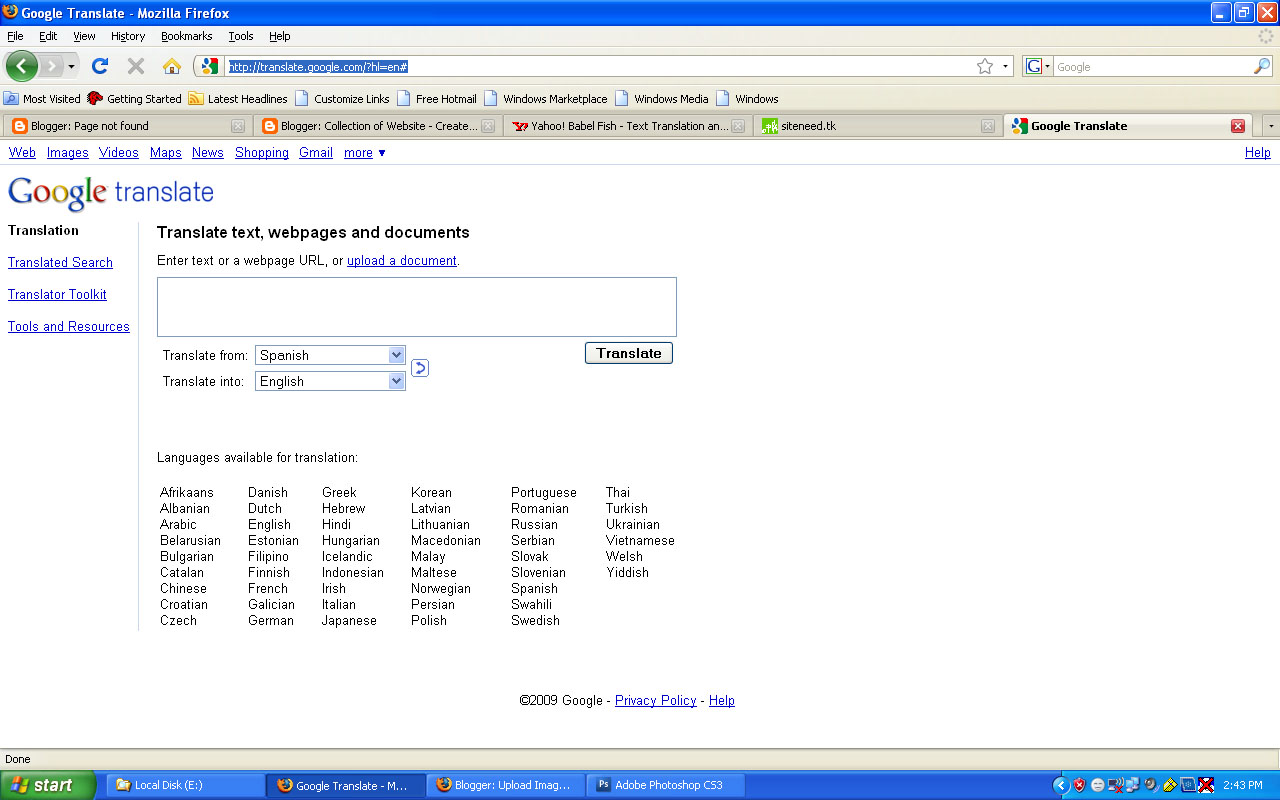
Google Translation
Translate
- Word
- Text
- Web Page/
click here
http://translate.google.com/?hl=en#
Learn here

---------------------------------------------------------------------------
Yahoo Translation
Click here
http://babelfish.yahoo.com/

Google Translation
Translate
- Word
- Text
- Web Page/
click here
http://translate.google.com/?hl=en#
Learn here
---------------------------------------------------------------------------
Yahoo Translation
Click here
http://babelfish.yahoo.com/

Saturday, November 28, 2009
Printer Friendly Page
You can prints out any webpage with its background colors and with out background colors using Internet Explorer setting. Generally Internet Explorer setting "Print background colors and images" is disable, if you print webpage without background colors, then you can speed up your printing and save printer ink. But important thing to always preview WebPages before you print, in Internet Explorer go to File menu, then click on Print Preview option.
To enable or disable print background colors option, open your system Internet Explorer.
Click the Tools menu and then go to Internet Options and open it. Here click the Advanced tab then scroll down to find the option Printing section.
Now check the option "Print background colors and images" then Apply and ok.
Tips to Print the Whole Page
If you are browsing any website and want to print it in readable form without any extra graphics. There is a option on many websites " Print " to print a page in text format only, otherwise you can print out any webpage with its background colors and with out background colors using Internet Explorer setting. Generally Internet Explorer setting "Print background colors and images" is disable, if you are printing webpage without background colors, then you can speed up your printing and save printer ink. But important thing to always preview WebPages before you print, in Internet Explorer go to File menu, then click on Print Preview option.
To enable or disable print background colors option, open your system Internet Explorer.
Click the Tools menu and then go to Internet Options and open it. Here click the Advanced tab then scroll down to find the option Printing section.
Now check the option "Print background colors and images" then Apply and ok.
Print Pictures from Web Pages
If you are browsing the internet and wants to print a picture from any website. The simple way is first right click on image then chooses the option Print Picture, but the problem here you cannot edit the picture before printing for example color or size of image. The best technique is first save this image on your computer then prints it using any image editing application like Adobe Photoshop or ACDSee.
How to enable or disable cookies
When you are browsing your internet, the web server placed some text files on your computer as cookies. The main purpose of cookies to save your preferences that you specify for future reference. You can enable or disable your computer web browser cookies, but it is important for you if you disable your browser cookies, may be some website will not work properly.
If you are using Internet Explorer 6.x and later then follow the given steps to enable or disable cookies.
-
Open Internet Explorer, click on the Tools then Internet Options.
-
Click on Privacy tab from the left top of dialog box and click on Advanced button.
-
To enable the cookies, select the Accept option and for disable check the option Override automatic cookies handling then click on block.
-
Now restart the browser to execute changes.
Useful Internet Explorer shortcuts keys
Useful Internet Explorer shortcuts keys
CTRL+A Selects the all items on active page
CTRL+B Display the "Organize Favorites" dialog box
CTRL+D Add the active page to your favorites list
CTRL+F Display "Find" dialog box to search text on active page
CTRL+I Display the Favorites pane
CTRL+H Display the History pane
CTRL+N Use to open new Internet Explorer page
CTRL+W Closes the active explorer window CTRL+Tab Go to address bar of current explorer page ALT+Home Use to open the home page of internet explorer ALT+Left Arrow Go to previous page of active page ALT+Right Arrow Go to next page of active page ALT+A Go to Internet Explorer Favorites Menu CTRL+P Use to print the active web page ALT+D Go to address bar of current explorer page ALT+E Go to Internet Explorer Edit Menu ALT+F Go to Internet Explorer File Menu ALT+T Go to Internet Explorer Tools Menu ALT+V Go to Internet Explorer View Menu Tab Move forward between all items on active web page F5 Refresh the active web page F11 Press F11 key to view any webpage in full-screen view and then again press for normal view. Press Ctrl+Enter Windows will automatically add both "www" and ".com". For example, if we type
Mozilla Firefox Shortcuts Keys
Useful Mozilla Firefox shortcuts keys
Shortcut keys Action
CTRL+A Selects the all items on active page
CTRL+B Display the "Organize Bookmarks" dialog box
CTRL+D Include the active page to your Bookmarks list
CTRL+F Display the "Find" dialog box to search text
CTRL+I Display the Bookmarks pane
CTRL+H Display the History sidebar of Mozilla Firefox
CTRL+N Use to open new Mozilla Firefox page
CTRL+P Use to print the active web page
CTRL+R Use to reload the active web page CTRL+T Display a new Tab in active Firefox window CTRL+U View the source code of active web page CTRL+W Closes the active Mozilla Firefox window CTRL++ Use to increase the font size of active page CTRL+ - Use to decrease the font size of active page CTRL+Tab Move to next Tab in Mozilla Firefox ALT+Home Use to open the home page of internet explorer ALT+Left Arrow Go to previous page of active page ALT+Right Arrow Go to next page of active page ALT+B Go to Mozilla Firefox Favorites Menu ALT+D Go to address bar of current Firefox page ALT+E Go to Mozilla Firefox Edit Menu ALT+F Go to Mozilla Firefox File Menu ALT+S Go to Mozilla Firefox History Menu ALT+T Go to Mozilla Firefox Tools Menu ALT+V Go to Mozilla Firefox View Menu Tab Move forward between all items on active web page F5 Refresh the active web page F7 F7 activate the cursor to move with keyboard CTRL+SHIFT+DEL Use to clear all Private Data history CTRL+SHIFT+D Use to Bookmarks all Firefox Tabs Press Ctrl+Enter Windows will automatically add both "www" and ".com". For example, if we type computerfreetips in an address bar and then press Ctrl-Enter, Windows will take us to the www.neakpourn.com Press Shift+Enter Windows will automatically add both "www" and ".net" Press Ctrl+Shift+Enter Windows will automatically add both "www" and ".org"
Subscribe to:
Posts (Atom)
